# Conexão manual - IOS

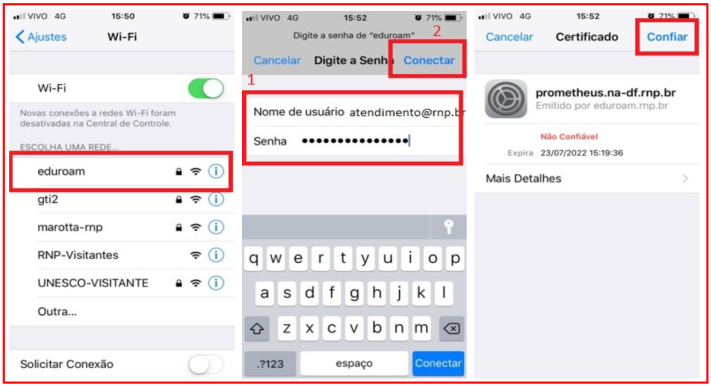
<span style="font-size: 11pt; font-family: Arial; color: #000000; background-color: transparent; font-weight: 400; font-style: normal; font-variant: normal; text-decoration: none; vertical-align: baseline; white-space: pre-wrap;">Para configurar a rede Eduroam em um *smartphone* IOS siga os seguintes passos:</span>

1. <span style="font-size: 11pt; font-family: Arial; color: #000000; background-color: transparent; font-weight: 400; font-style: normal; font-variant: normal; text-decoration: none; vertical-align: baseline; white-space: pre-wrap;">Ative a conexão *wi-fi* do seu dispositivo e selecione a rede </span><span style="font-size: 11pt; font-family: Arial; color: #000000; background-color: transparent; font-weight: bold; font-style: normal; font-variant: normal; text-decoration: none; vertical-align: baseline; white-space: pre-wrap;">eduroam</span><span style="font-size: 11pt; font-family: Arial; color: #000000; background-color: transparent; font-weight: 400; font-style: normal; font-variant: normal; text-decoration: none; vertical-align: baseline; white-space: pre-wrap;">.</span>
2. <span style="font-size: 11pt; font-family: Arial; color: #000000; background-color: transparent; font-weight: 400; font-style: normal; font-variant: normal; text-decoration: none; vertical-align: baseline; white-space: pre-wrap;">Após selecionar a rede, preencha os campos:</span>
    - <span style="font-size: 11pt; font-family: Arial; color: #000000; background-color: transparent; font-weight: 400; font-style: normal; font-variant: normal; text-decoration: none; vertical-align: baseline; white-space: pre-wrap;">Nome de usuário: login institucional (nome.sobrenome)</span>
    - <span style="font-size: 11pt; font-family: Arial; color: #000000; background-color: transparent; font-weight: 400; font-style: normal; font-variant: normal; text-decoration: none; vertical-align: baseline; white-space: pre-wrap;">Senha: senha institucional (senha da rede CAFe)</span>
3. <span style="font-size: 11pt; font-family: Arial; color: #000000; background-color: transparent; font-weight: 400; font-style: normal; font-variant: normal; text-decoration: none; vertical-align: baseline; white-space: pre-wrap;">Clique em "Conectar"</span>
4. <span style="font-size: 11pt; font-family: Arial; color: #000000; background-color: transparent; font-weight: 400; font-style: normal; font-variant: normal; text-decoration: none; vertical-align: baseline; white-space: pre-wrap;">Caso seja necessário validar o certificado, basta clicar em "Confiar".</span>

[![eduroam-ios.png](https://documentacao.ufvjm.edu.br/uploads/images/gallery/2022-07/scaled-1680-/BHM4YseE9wxMVzT8-eduroam-ios.png)](https://documentacao.ufvjm.edu.br/uploads/images/gallery/2022-07/BHM4YseE9wxMVzT8-eduroam-ios.png)